Writing Indic Languages in \( \LaTeX \)
\( \LaTeX \) is an open-source typesetting system widely used for academic and scientific documents. It provides excellent support for complex mathematical equations, bibliographies, and formatting. This tutorial focuses on how to write Indic languages, using Assamese as an example. I will stick to the Windows operating system for this tutorial. Same steps can be followed for Linux and MacOS, but the installation steps will differ.
\( \LaTeX \) হৈছে শৈক্ষিক আৰু বৈজ্ঞানিক নথিপত্ৰৰ বাবে বহুলভাৱে ব্যৱহৃত এটা মুক্ত উৎসৰ টাইপছেটিং ছফ্টৱেৰ। ইয়াৰ সহায়ত জটিল গাণিতিক সমীকৰণৰ লগতে উৎকৃষ্ট মানৰ লিপি সহজে লিখি PDF প্ৰস্তুত কৰিব পাৰি। এই উদাহৰণটোত অসমীয়া লিপিত বৈজ্ঞানিক নথিপত্ৰ কিদৰে লিখিব পাৰি সেয়া শিকোৱা হৈছে।
Software installation
To write documents in LaTeX, two things are required: a LaTeX distribution and a text editor. The distribution contains the core LaTeX system, while the text editor provides a user-friendly interface for writing and compiling documents as PDFs, with error highlighting and other helpful features. For Windows, MikTeX is a popular distribution, and TeXStudio is a widely used editor.
LaTeX-ত ডকুমেণ্ট লিখিবলৈ, দুটা বস্তুৰ প্ৰয়োজন: এটা LaTeX-ৰ পেকেজ বিতৰণ ব্যৱস্থা, আৰু এটি সম্পাদক ছফ্টৱেৰ (এডিটৰ)। LaTeX-ৰ মূল নিৰ্দেশনাসমূহ পেকেজ বিতৰণ ব্যৱস্থাটোৱে যোগান ধৰে, আৰু এডিটৰটোৰ জৰিয়তে ডকুমেণ্টসমূহ লিখা আৰু PDF হিচাপে কম্পাইল কৰা হয়। এডিটৰটোৱে ভুল চিনাক্ত কৰাৰ লগতে লিখাৰ ক্ষেত্ৰত বিভিন্ন সুবিধা প্ৰদান কৰে। Windows ব্যৱহাৰকাৰীসকলৰ বাবে MikTeX এটা জনপ্ৰিয় বিতৰণ ব্যৱস্থা আৰু TeXStudio অতি জনপ্ৰিয় এটা এডিটৰ।
Install MikTeX
Link: https://miktex.org/howto/install-miktex
For the LaTeX distribution, I picked MikTeX because it has the ability to install missing packages automatically, i.e., this installer is suitable for computers connected to the Internet. The above website provides detailed instructions for installing MikTeX on Windows, Linux, and macOS. For Windows, the installation is straightforward: download the installer, run it, and follow the on-screen instructions. Verify the installation by searching for "MikTeX Console" in the start menu and opening it. If it opens without any errors, the installation is successful. No need to open the console during document writing; as the editor will handle package installations automatically.
এই উদাহৰণটোত LaTeX-ৰ পেকেজ বিতৰণ ব্যৱস্থা হিচাপে MikTeX ছফ্টৱেৰটো বাছি লৈছো, কিয়নো ডকুমেণ্টসমূহত ব্যৱহৃত সকলো পেকেজ একেলগে কম্পিউটাৰত ইনষ্টল কৰাৰ প্ৰয়োজন নাই। (সকলোবোৰ মিলাই মুঠ পেকেজবোৰ ৪/৫ GB মান হয়।) কেৱল প্ৰয়োজনীয় অথচ কম্পিউটাৰটোত নথকা পেকেজবোৰ MikTeX Console-এ ইণ্টাৰনেটৰ পৰা স্বয়ংক্ৰিয়ভাৱে ইনষ্টল কৰি লয়। ইয়াৰ বাবে কেৱল সক্ৰিয় ইণ্টাৰনেট সংযোগৰ প্ৰয়োজন। ৱেবছাইটটোত Windows, Linux, আৰু macOS-ত MikTeX ইনষ্টল কৰাৰ সহজ নিৰ্দেশনা দিয়া আছে। Windows-ৰ বাবে ইনষ্টলাৰটো ডাউনলোড কৰি চলাওক আৰু স্ক্ৰিনত অহা নিৰ্দেশনাসমূহ অনুসৰণ কৰক। ইনষ্টল হোৱাৰ পাছত start মেনুত "MikTeX Console" বিচাৰি এই ছফ্টৱেৰটো চলাব পাৰিব। অৱশ্যে ডকুমেণ্ট লিখাৰ সময়ত এই ছফ্টৱেৰটো খোলাৰ কোনো প্ৰয়োজন নাই, কাৰণ এডিটৰটোৱে নিজেই MikTeX-ৰ জৰিয়তে প্ৰয়োজনীয় পেকেজসমূহ ডাউনলোড কৰি ল'ব পাৰে।
Install TeXStudio
Link: https://www.texstudio.org
TeXStudio is a free, open-source LaTeX editor for Windows, Linux, and macOS. It can be downloaded from the link provided above. I prefer TeXStudio for its user-friendly interface for writing and compiling LaTeX documents, with error highlighting and other helpful features.
TeXStudio হ'ল Windows, Linux, আৰু macOS-ৰ বাবে একেবাৰে বিনামূলীয়া আৰু মুক্ত উৎসৰ এটা LaTeX এডিটৰ। ইয়াক ওপৰৰ লিংকটোৰ পৰা ডাউনলোড কৰিব পাৰি। LaTeX ডকুমেণ্ট লিখা আৰু কম্পাইল কৰাৰ বাবে ইয়াৰ সহজে ব্যৱহাৰযোগ্য ইনটাৰফেচ, ভুল চিনাক্তকৰণ আৰু অন্যান্য সহায়ক বৈশিষ্ট্যসমূহ অতি সুবিধাজনক।
Install fonts
To write in Indic languages, the appropriate fonts must be installed on the system. For Assamese and Bengali, the "Kalpurush" font is used an an example here. Some commonly used Indic fonts can be downloaded from the following links.
ভাৰতীয় ভাষাত লিখিবলৈ হ'লে কম্পিউটাৰটোত উপযুক্ত ফণ্টসমূহ ইনষ্টল থকাটো প্ৰয়োজনীয়। অসমীয়া আৰু বঙালী ভাষাৰ বাবে ইয়াত "কালপুৰুষ" ফণ্টটো ব্যৱহাৰ কৰা হৈছে। সাধাৰণতে ব্যৱহৃত কিছুমান ভাৰতীয় ফণ্ট তলৰ লিংকবোৰৰ পৰা ডাউনলোড কৰিব পাৰি।
Running the software
After installing the software, open TeXStudio. Create a new file and save it with a
.tex
extension. This is the LaTeX source file. TexStudio takes this source file and uses the packages provided
by MikTex to compile it into a PDF. An example LaTeX document is provided in the following link.
ছফ্টৱেৰটো ইনষ্টল কৰাৰ পিছত TeXStudio খোলক। এটা নতুন ফাইল তৈয়াৰ কৰি ইয়াক
.tex
এক্সটেনশ্বন দি ছেভ কৰক। এইটোৱেই হ'ল LaTeX source ফাইল। TeXStudio-ৱে এই source ফাইলটো লৈ MikTeX-ৰ দ্বাৰা
প্ৰদান কৰা পেকেজসমূহ ব্যৱহাৰ কৰি ইয়াক এটা PDF লৈ কম্পাইল কৰে। LaTeX-ডকুমেন্টৰ এটা আৰ্হি তলৰ লিংকটোত দিয়া
হৈছে।
Sample LaTeX document (
.tex
)
Configure TexStudio
TexStudio supports multiple compiler options, including
pdfLaTeX
,
XeLaTeX
, and
LuaLaTeX
. Here
pdfLaTeX
is the default and the oldest option. For Indic language support,
XeLaTeX
is recommended as it provides better font handling and Unicode support. For compiling the document,
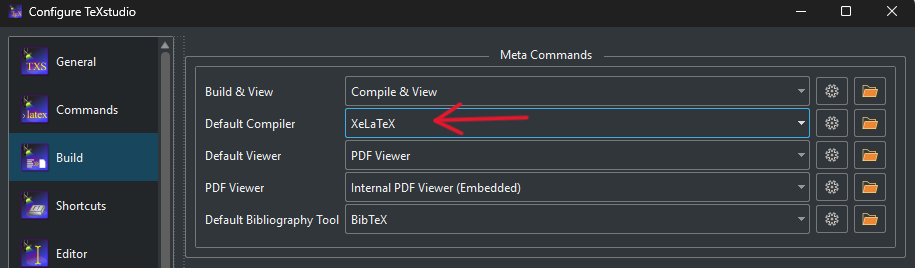
configure the TeXStudio settings to use
XeLaTeX
as the compiler. This can be done by navigating to
Options > Configure TeXStudio > Build
and selecting "XeLaTeX" from the drop-down menu. After configuring, click on the "Build & View" button (or
press F5) to compile the document and generate a PDF.
TeXStudio-ত
pdfLaTeX
,
XeLaTeX
, আৰু
LuaLaTeX
আদি কেইবাটাও কম্পাইলাৰৰ বিকল্প আছে। ইয়াৰ ভিতৰত
pdfLaTeX
হৈছে আটাইতকৈ পুৰণি আৰু পূৰ্বনিৰ্ধাৰিত বিকল্প। কিন্তু অসমীয়া বা অন্যান্য আঞ্চলিক লিপিৰ বাবে
XeLaTeX
ব্যৱহাৰ কৰাটো অধিক উপযোগী, কিয়নো ইয়াৰ দ্বাৰা ফণ্ট আৰু ইউনিক’ড সুন্দৰকৈ নিয়ন্ত্ৰণ কৰিব পাৰি। ডকুমেণ্ট
কম্পাইল কৰিবলৈ TeXStudio-ৰ ছেটিংছ সলনি কৰি
XeLaTeX
কম্পাইলাৰ হিচাপে বাছি লওক। ইয়াৰ বাবে ওপৰৰ মেনুৰ পৰা
Options > Configure TeXStudio > Build
লৈ গৈ ড্ৰপ-ডাউন মেনুৰ পৰা "XeLaTeX" নিৰ্বাচন কৰক। এইখিনি কৰাৰ পিছত "Build & View" বুটামটোত ক্লিক কৰক
(বা F5 প্ৰেছ কৰক) যাতে ডকুমেণ্টটো কম্পাইল হৈ এটা PDF তৈয়াৰ হয়।
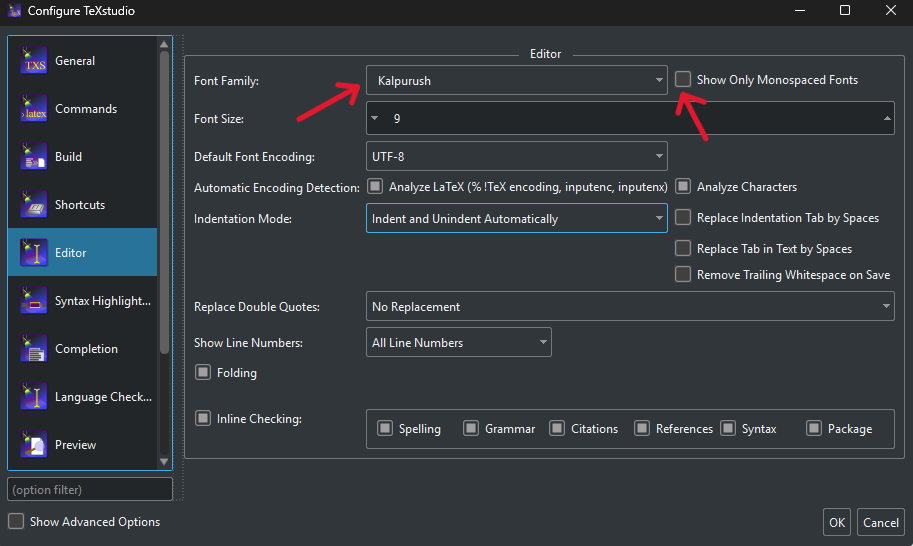
Additionally, to make the source code appear properly in the editor, set the encoding to UTF-8, and pick the right font for the editor. This can be done by navigating to Options > Configure TeXStudio > Editor and selecting "UTF-8" as the encoding and a suitable font that supports Indic scripts, such as "Noto Serif Bengali" or "Kalpurush".
ইয়াৰোপৰি, এডিটৰত source ক’ডবোৰ সঠিকভাৱে দেখা পাবলৈ এনক’ডিং UTF-8 লৈ ছেট কৰক আৰু এডিটৰৰ বাবে সঠিক ফণ্ট বাছি লওক। ইয়াৰ বাবে Options > Configure TeXStudio > Editor লৈ গৈ এনক’ডিং হিচাপে "UTF-8" আৰু ভাৰতীয় লিপি সমৰ্থন কৰা এটা উপযুক্ত ফণ্ট যেনে "Noto Serif Bengali" বা "Kalpurush" নিৰ্বাচন কৰক।
Example Assamese document
When compiled correctly, the example document shared above will produce a PDF as follows (except for the figure, which is not included in the example).
উপৰিউক্ত ডকুমেণ্টটো সঠিকভাৱে কম্পাইল কৰিলে তলৰ দৰে এটা PDF তৈয়াৰ হ’ব (অৱশ্যে আৰ্হিটোত ছবিখন অন্তৰ্ভুক্ত কৰা হোৱা নাই)।
Compiled LaTeX document (.pdf
)